
Fabricação em três etapas
O Odoo Fabricação permite que os usuários fabriquem produtos usando uma, duas ou três etapas. Ao usar a fabricação em três etapas, o Odoo cria uma transferência de componentes de separação, uma ordem de produção (OP) e uma transferência de produtos acabados da loja, além de atualizar as contagens de estoque com base no número de componentes removidos e produtos acabados criados.
Dica
O número de etapas usadas na fabricação é definido no nível do armazém, permitindo que cada um use quantidades diferentes de etapas. Para alterar o número de etapas usadas em um armazém específico, comece navegando até e, em seguida, selecione um na tela Armazéns.
Na aba Configuração do armazém, localize o campo de entrada de rádio Fabricação e selecione uma das três opções: Fabricação (1 etapa), Selecionar componentes e fabricar (2 etapas), ou Selecionar componentes, fabricar e armazenar os produtos (3 etapas).

Importante
Os produtos devem ser configurados corretamente antes de poderem ser fabricados no Odoo. Para obter detalhes sobre como fazer isso, consulte a documentação sobre como configurar um produto para fabricação.
Criar ordem de produção
To manufacture a product in Odoo Manufacturing, begin by navigating to , and then click New to create a new MO.
On the new MO, select the product to be produced from the Product drop-down menu. The Bill of Material field auto-populates with the associated Bill of Materials (BoM).
If a product has more than one BoM configured for it, the specific BoM can be selected in the Bill of Material field, and the Product field auto-populates with the associated product.
After a BoM has been selected, the Components and Work Orders tabs auto-populate with the components and operations specified on the BoM. If additional components or operations are required for the MO being configured, add them to the Components and Work Orders tabs by clicking Add a line.
Finally, click Confirm to confirm the MO.
Processar transferência de componentes da separação
After confirming a three-step MO, a Transfers smart button appears at the top of the page. Click it to be taken to the Transfers page for the MO. The page lists two transfers: WH/PC/XXXXX (the pick components transfer), and WH/SFP/XXXXX (the store finished products transfer).
Select WH/PC/XXXXX to open the pick components transfer for the MO. This transfer is used to track the movement of components from the locations where they are stored to the location where they are used to manufacture the product.
Depois de transferir os componentes para fora do local de armazenamento, clique em Validar na parte superior da transferência, seguido de Aplicar na janela pop-up Transferir imediatamente? que aparece. Isso marca a transferência como concluída e atualiza as contagens de inventário para incluir a quantidade de componentes transferidos.
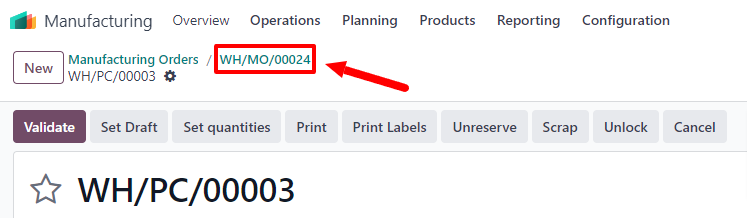
Finally, return to the MO by clicking the WH/MO/XXXXX breadcrumb at the top of the page.
Processar ordem de produção
An MO is processed by completing all of the work orders listed under its Work Orders tab. This can be done on the MO itself, or from the work order tablet view.
Fluxo de trabalho básico
To complete work orders from the MO itself, begin by navigating to , and then select a manufacturing order.
On the MO page, select the Work Orders tab. Once work begins on the first work order that needs to be completed, click the Start button for that work order. Odoo Manufacturing then starts a timer that keeps track of how long the work order takes to complete.
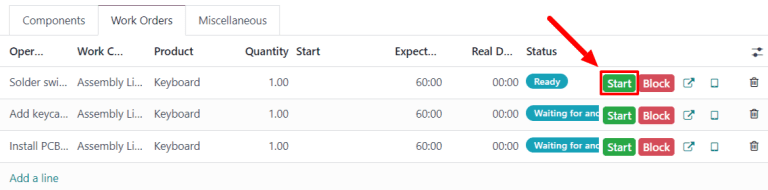
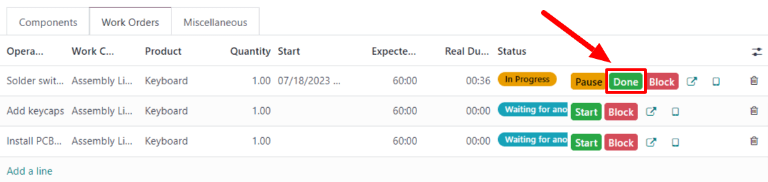
Quando a ordem de trabalho for concluída, clique no botão Concluído para essa ordem de trabalho. Repita o mesmo processo para cada ordem de trabalho listada na aba Ordens de trabalho.
After completing all of the work orders, click Produce All at the top of the screen to mark the MO as Done, and register the manufactured product(s) into inventory.
Fluxo de trabalho na visualização de tablet
To complete the work orders for an MO using the tablet view, begin by navigating to , and then select a manufacturing order.
Em seguida, clique na aba Ordens de trabalho e selecione o botão 📱 (tablet) na linha da primeira ordem de trabalho a ser processada. Isso abre a visualização de tablet.
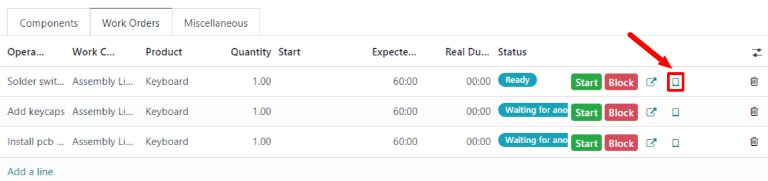
Depois de abrir a exibição em tablet, o Odoo Fabricação inicia automaticamente um cronômetro que controla o tempo que a ordem de trabalho leva para ser concluída. Depois de concluir a ordem de trabalho, clique no botão Marcar como concluído no canto superior direito da visualização de tablet.
Clicar em Marcar como concluído enquanto houver pelo menos mais uma ordem de trabalho a ser concluída abre uma página que lista a próxima ordem de trabalho. Clique nessa ordem de trabalho para abri-la na visualização de tablet.
Once the final work order for the MO has been reached, a Mark as Done and Close MO button appears on the tablet view in addition to the Mark as Done button. Click Mark as Done and Close MO to mark the MO as Done, and register the manufactured product(s) into inventory.
It is also possible to complete the final work order while keeping the MO open, by clicking Mark as Done. In this case, the MO can be closed at a later time by clicking the Produce All button on the MO.
Processar transferência de produtos acabados
After completing the MO, return to the order’s Transfers page by clicking the Transfers button at the top of the order. This time, select WH/SFP/XXXXX to open the store finished products transfer. This transfer is used to track the movement of finished products from the location where they were manufactured to the location where they are stored.
Depois de transferir os produtos acabados para o local de armazenamento, clique em Validar na parte superior da transferência, seguido de Aplicar na janela pop-up Trasferir imediatamente? que aparece. Isso marca a transferência como concluída e atualiza as contagens de estoque para refletir a quantidade de produtos acabados transferidos.