
Skip to content
BETA
KMEE DocumentationOdoo 16.0
Brazilian localization Tasks by area
Areas
Brazilian localization Tasks by area Modules

Sales and operations

  • CRM and opportunities
  • Sales
  • Purchases
  • Inventory and deliveries
  • Manufacturing

Management and teams

  • Invoicing and accounting
  • Employees and time off
  • Projects and tasks
  • Subscriptions and rental

Workspace and tools

  • Everyday tools
  • Messages and calendar
  • Companies, users and email
  • Documents and spreadsheets
  • Reports and dashboards
Guides under review

This page requires Enterprise. You are now on the Community documentation home page.

Explore documentation
  • Home
  • Brazilian localization
  • Tasks by area

Areas

  • Everyday tools
  • CRM and opportunities
  • Sales
  • Purchases
  • Inventory and deliveries
  • Manufacturing
  • Invoicing and accounting
  • Employees and time off
  • Projects and tasks
  • Messages and calendar
  • Companies, users and email
  • Subscriptions and rental
  • Documents and spreadsheets
    • Organize product and employee documents
  • Reports and dashboards

Tools

  • Modules
  • Coverage and validation
Documentation /Module reference /Documents and spreadsheets

Link Odoo data

You can insert and link several elements from your database in your spreadsheets, namely:

  • pivots,

  • graphs,

  • lists, and

  • links to menus (i.e., a clickable link to a view of a specific model).

Before inserting pivots, graphs, or lists, ensure they are tailored to your needs, as some elements are more quickly - or only - configurable in their respective view.

  • To insert pivots and graphs, click Insert in spreadsheet from any pivot or graph view.

  • To insert lists, click Favorites ‣ Insert list in spreadsheet from any list view.

  • To insert links to menus, click Favorites ‣ Link menu in spreadsheet from any view.

In the pop-up box, either create a new spreadsheet by selecting Blank spreadsheet or insert it in an existing one by selecting it and clicking Confirm.
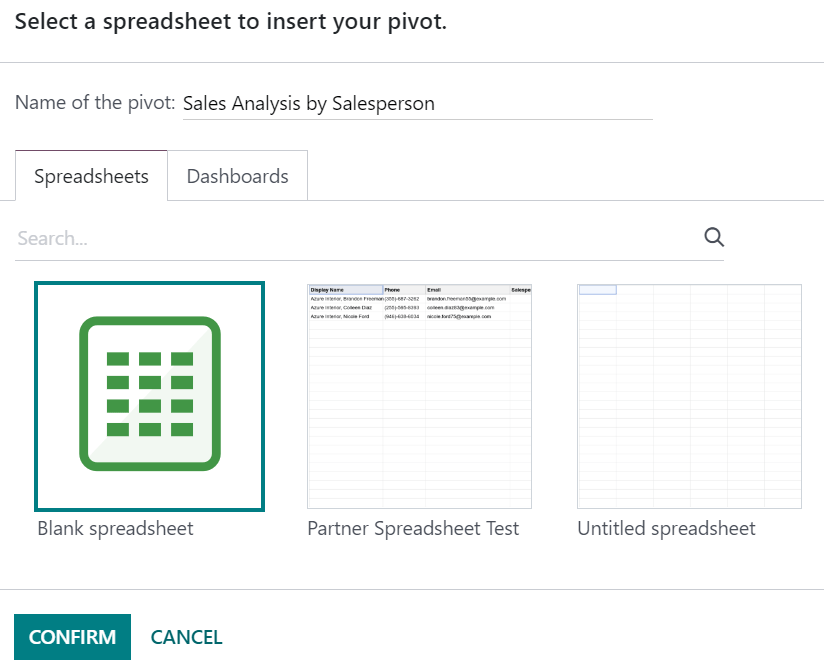
Inserting a pivot in a spreadsheet

Note

By default, new spreadsheets are saved under the Spreadsheet workspace of the Documents app.

Updating data

Once inserted in a spreadsheet, your data is kept up-to-date, reflecting any changes made to your database. Reopening the spreadsheet reloads the linked data.

Note

To update pivots and lists data without reopening a spreadsheet, go to the menu bar and click Data ‣ Refresh all data.

Pivot data

Using Refresh all data only updates existing pivot cells. If new cells need to be added, go to the menu bar and click Data ‣ Re-insert pivot to fully update the pivot. Alternatively, click Insert pivot, select the pivot, and tick Display missing cells only to preview first the missing data.
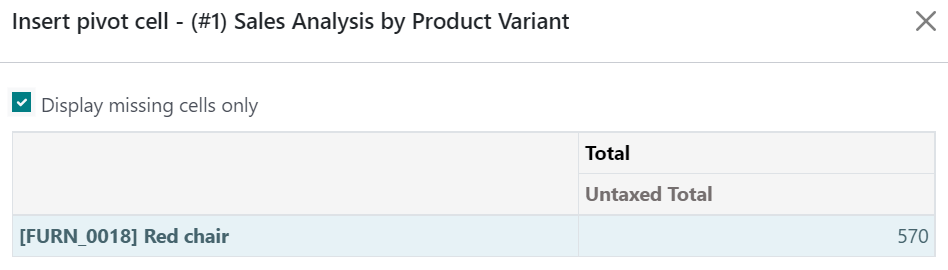
Displaying missing cells in a pivot

To change which records are used by the pivot, right-click on a pivot cell, select See pivot properties, and click Edit domain.

Continue reading the documentation

Leave your contact to continue with the full manual. KMEE replies within 1 business day.

We use this contact only for KMEE to reply. No spam.

Source: Odoo S.A. e colaboradores · KMEE. License: CC BY-SA 4.0. Editorial adaptation: KMEE. Credits and licenses
On this page
  • Link Odoo data
    • Updating data
      • Pivot data
Back to top
KMEE

Documentation for everyday work.

Guides to Odoo and the Brazilian localization, all in one place.

Brazilian localization Tasks by area Modules Coverage and validation Credits and licenses KMEE website
KMEE · Odoo 16.0Documentation preview · guides under review